Professional Project Management with a Bit of Magic
In the office, at home and on the road
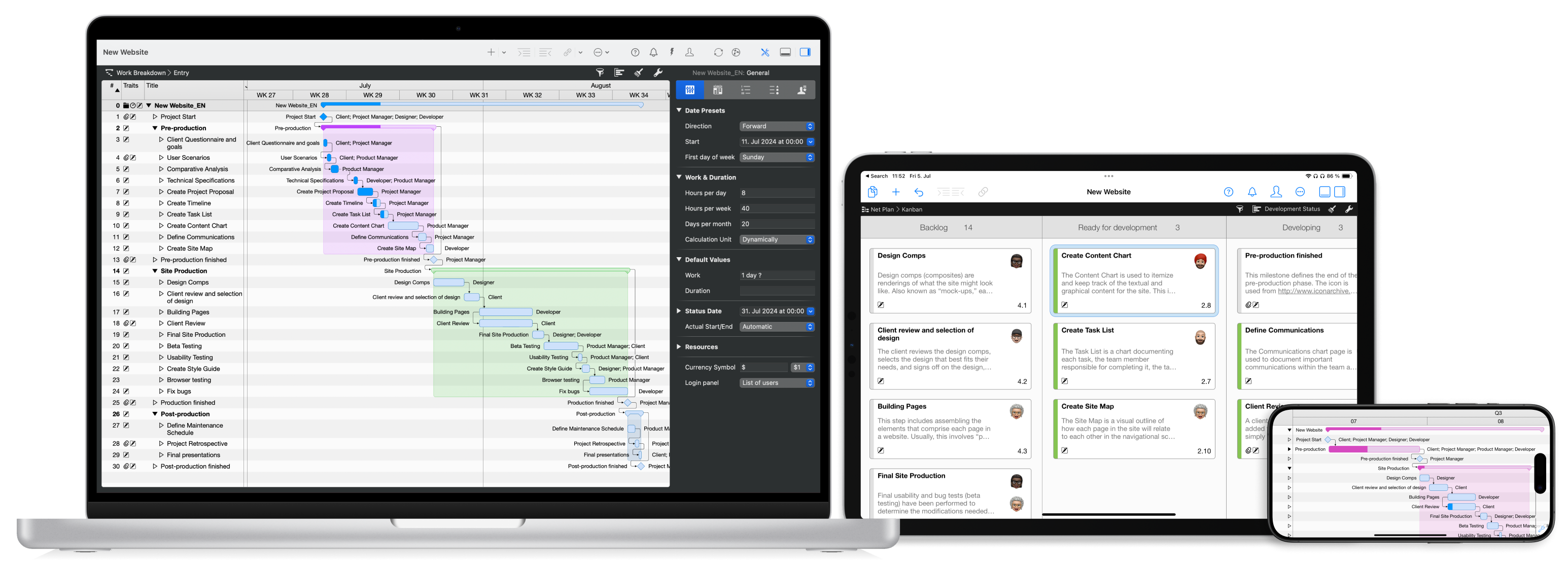
Merlin Project is the standard for project management in industries such as Architecture & Construction, Media & Agencies, Research & Development, Education and others. For more than 20 years customers in over 160 countries have been using our flexible app to plan, manage & control their small and large projects – no matter whether you're on a Mac or an iPad!
Increase your quality and efficiency with Merlin Project - almost as if by magic!
Planning and Organizing Projects
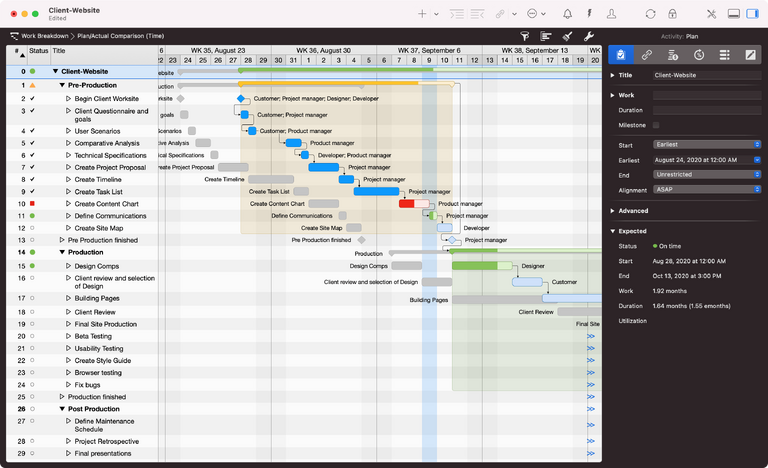
Every project begins with a plan. With Merlin Project, you simply create the flow of your tasks, determine duration and dependencies, and define fixed milestones. You'll be amazed at how quickly a precise project plan develops before your very eyes.
Read more about the work breakdown and the Gantt chart.

The Creative Approach
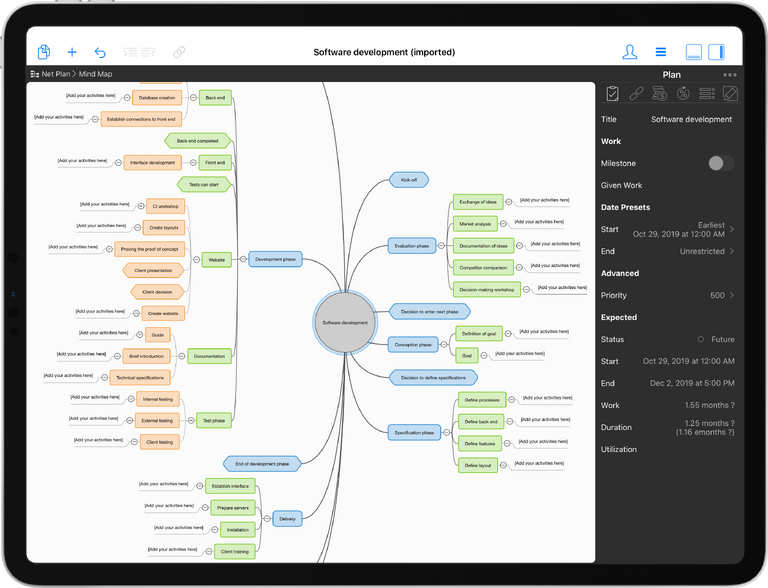
Or start your project with brainstorming in the intuitive mind map. Arrange your thoughts and ideas clearly as branches around your central topic. Merlin Project automatically transfers your input to the work breakdown view. With just a few clicks, you can transform a complex plan into an elegant and expressive mind map.
Read more about the mind map.
Document Your Annotations
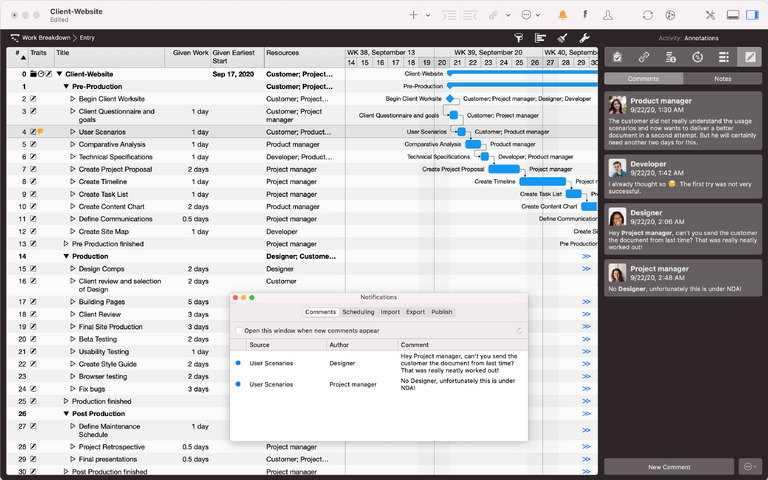
Very often considerations and reasons for decisions get lost in the thicket of all e-mails. And when these are commented on by others, the overview is usually completely lost. Merlin Project is a valuable tool here as well. Comment and discuss your project, every single activity, every resource and every attachment in the project team.
Read more about the comments & annotations.
Agile Waterfall is Not a Swear Word
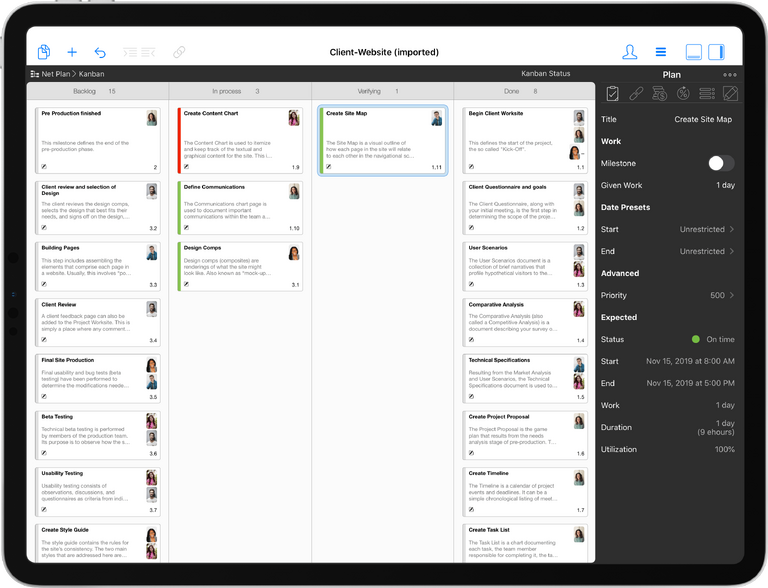
Project management couldn't be simpler than in the Kanban view: Collect your tasks in the left column as cards. As the project progresses, move them to the right until they finally end up in the Completed column. If you switch between the kanban board and the work breakdown view, you experience the magic effect: The Gantt bars fill automatically. This is hybrid project management.
Read more about the use of Kanban.
Make the Most of Your Team
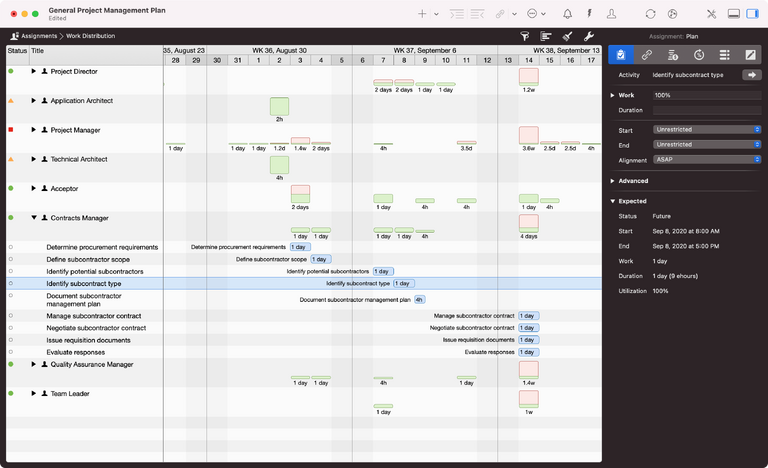
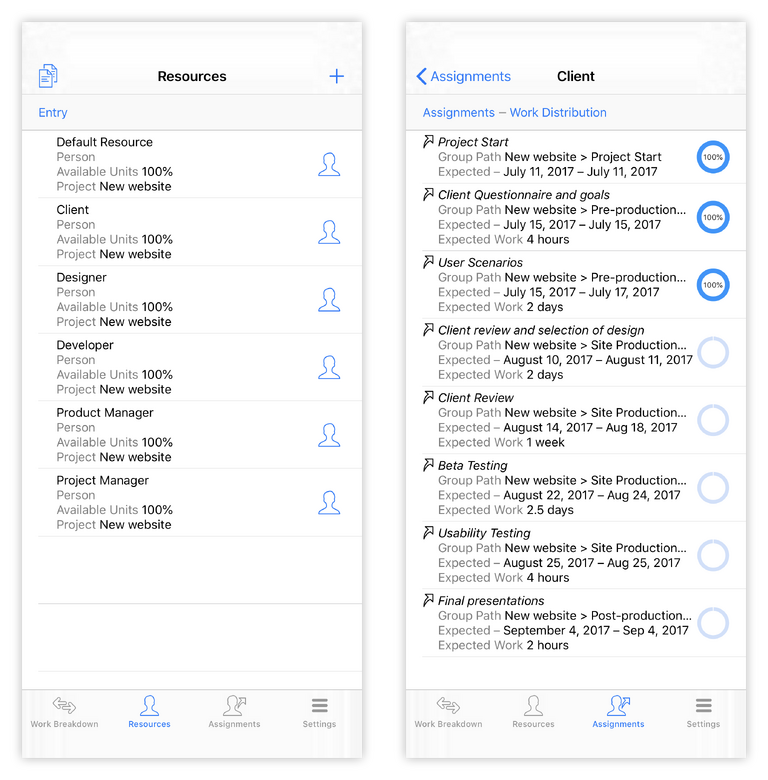
In the assignments view, you can see at a glance which tasks are due for each employee at what time. Find critical overloads and distribute the work in your team with just a few gestures - even across several projects.
Finally, no more overtime and boredom in the project!
Read more about the utilization view.
Like an Attachment to your Email
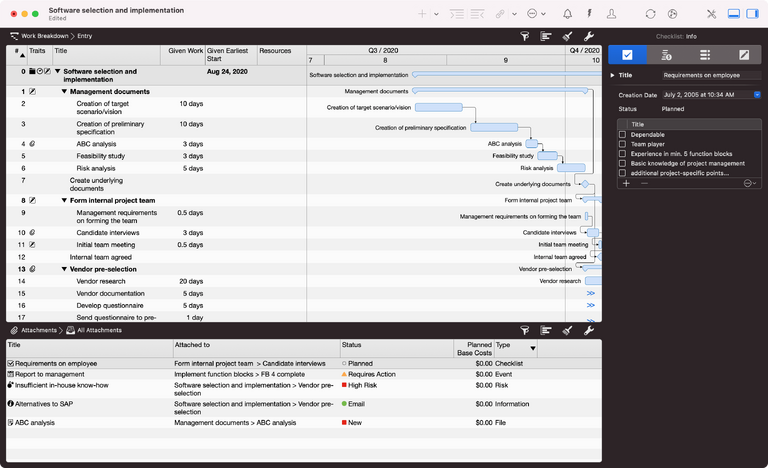
Not only attach any files to tasks in your project, but also additional information: For example, use checklists to organize smaller tasks and manage upcoming project deadlines. Pin emerging problems to tasks and be aware of dangers by assigning risks to project phases. With Merlin Project's rich attachments, your project file is always at your fingertips.
Cloud Project Management
Whether in the office, in the home office or on all paths in between: With Merlin Project your team works with up-to-date project data in every situation. If you are offline, Merlin Project synchronizes everything as soon as the Internet is back for you - guaranteed without annoying conflict files. This magic works with Dropbox and iCloud Drive - on the Mac even with all common cloud services. So many project cooks don't spoil the broth anymore.
Read more about our patented synchronization.

The most beautiful Gantt chart in the world
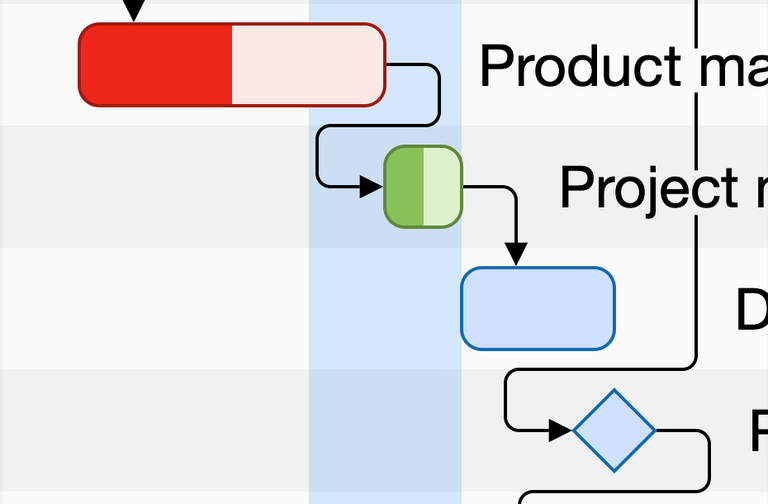
Impress your boss with high-quality diagrams from Merlin Project. Export beautiful pixel images in any resolution or vector-perfect PDFs as a basis for reproducible files. Why not take a look at a few examples.
Look forward to seeing your mindmap in the next annual report or to handing over your Gantt chart to your customer as an attractive construction schedule.
Compact on the iPhone
Merlin Project is also a reliable tool on the iPhone. All data and key figures are always available in a compact format. Even minor changes are no problem. If you want to see your project plan graphically, simply rotate your iPhone into landscape format. So you always have everything under control, even on the move.
Exchange with Microsoft Project and Many More
Even the MS Project users in your team don't have to be left out in the rain: Export your project in Microsoft-compatible format or import existing documents.
In general, no matter where your data comes from, with Merlin Project you almost always have a way to import it.
Learn more about data exchange with other programs.