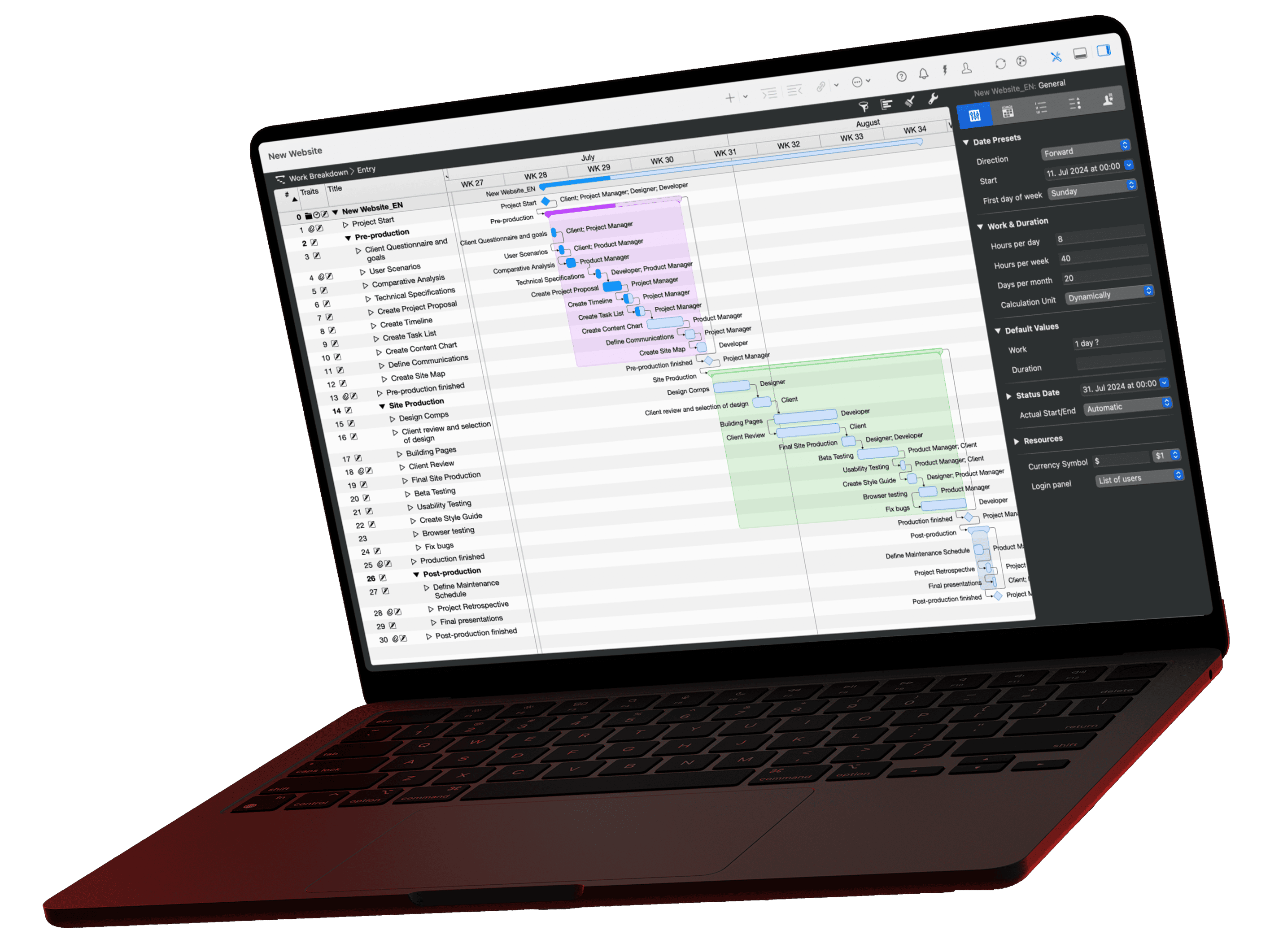
With Claude or ChatGPT, your question and the excerpts of the plan the AI reads for it travel through a provider's data center. For projects with customer data or an NDA that route is out. LM Studio turns it around. The language model runs on your Mac, speaks to the Merlin server over the same MCP standard, and question and answer both stay on the machine, even without internet. Below you will find the setup, the model recommendation by memory size, and the limits a local model runs into.
The video for this article
The video (in German) is embedded in the German version of this article.
What is different with LM Studio
With Claude or ChatGPT, your question and the plan data read for it go to a server on the internet. The model computes there, and the answer comes back. With LM Studio, the model runs on your machine, and both stay there.
| Claude, ChatGPT | LM Studio | |
|---|---|---|
| Where does the model compute? | In the provider's data center | On your Mac |
| What leaves the Mac? | The question and the plan excerpts read | Nothing |
| Model size | Very large | Small to medium, depending on RAM |
| Internet required? | Yes | No |
LM Studio is not listed in the official Merlin documentation. It works anyway, because it connects local MCP servers via the same configuration file as Claude Desktop. We use it ourselves but do not promise support for the app.
What you need
- Merlin Project, current version
- LM Studio for Mac, free
- a Mac with at least 16 GB of memory for a medium-sized model; 8 GB works with a smaller model
- about 5 to 10 GB of free disk space for the model file
Steps 1 and 2: prepare Merlin Project
On the Merlin side, nothing changes compared to the other clients:
- Install the server. In Merlin Project, open the Merlin Project menu and choose Install MCP Server. Merlin places a small program on your Mac, the bridge between AI client and plan. The installer shows the path; it is
/usr/local/bin/merlinproject-mcp. - Share the project. Open the project and click AI Tools in the toolbar. Check Allow AI tools to interact with document; the symbol is shown filled. Sharing applies to this one project only, all others stay invisible to the server. As soon as a client is connected, the symbol turns blue.
local · read-only · not reachable from outside. The server only reads the projects you share, changes nothing in your data, and nobody can reach it from outside. What a cloud client sees of the data it reads is explained in the privacy article.
Step 3: download a model
Open the model search in LM Studio and download a model. Two things matter: the model must fit your Mac, and it must support tool calling (marked in LM Studio with a hammer symbol on the model). Without that capability, the model cannot talk to the Merlin server even if it is configured correctly.
| Memory | Model size | Example |
|---|---|---|
| 8 GB | about 4 billion parameters | Qwen3 4B |
| 16 GB | about 8 billion parameters | Qwen3 8B |
| 32 GB and more | 14 to 30 billion parameters | Qwen3 14B, Qwen3 30B-A3B |
The Qwen3 family handles tool calling reliably and is available directly in LM Studio. Choose the 4-bit quantization (marked Q4 in the name); it halves the memory footprint with little loss in quality.
In the video we work with Google Gemma 4 E4B. The model reads the plan cleanly, but it reaches its limit quickly on long dependency chains and multi-step calculations. So test several models and other model families instead of staying with the first one. Which one carries your work on your Mac only shows in a comparison on your own plan.
Once the model is loaded, you can chat with it. It just does not know your project yet.
Step 4: add the Merlin server
LM Studio uses the same configuration file as Claude Desktop.
- In LM Studio, switch to the Program area (right sidebar).
- Under Install, click Edit mcp.json.
- Add the following block and save.
Config block for merlin-project mcp.json
{
  "mcpServers": {
    "merlin-project": {
      "command": "/usr/local/bin/merlinproject-mcp"
    }
  }
}
Again: only add to the file and delete nothing that is already there. After saving, LM Studio shows the server merlin-project; no restart needed. Enable the server in the chat via the plug symbol below the input field.
The proof: Wi-Fi off, plan answers
Switch off Wi-Fi in the menu bar. No network, no connection to the outside. Then ask your project:
Prompt: Which dates are coming up next?
List all milestones and important dates of the next four weeks from the active project, sorted chronologically. For each date, add the current state of the preceding tasks and an assessment of whether the date is realistic.Open this prompt in the library ›
The model calls the Merlin server, reads the dates, and answers. None of it has left the Mac, neither your question nor your plan. On the first tool call, LM Studio asks whether the model may use the server; confirm once for the session.
What it costs you
Local models are smaller than Claude or GPT. For reading, summarizing, and listing they do a good job. With tricky calculations, a long critical path, or a Monte Carlo simulation you notice the difference: answers get less precise, and the model takes longer. Add a bit more setup and the choice of model.
If your data must never leave the machine, this is still the strongest route. You decide what weighs more. A third option is mixed operation: LM Studio for the confidential projects, Claude Desktop for everything else. The Merlin server stays the same, only the AI side changes.
Alternative: Ollama
Ollama is the second common solution for local models on the Mac and runs in the terminal rather than in an app with a user interface. Ollama itself does not connect MCP servers; you need a client that uses Ollama as its model source and speaks MCP. For getting started, LM Studio is the shorter route because model choice, chat, and MCP configuration sit in one place.
Checklist "AI without the cloud"
For practice, use the sample project Produktlaunch Phoenix from the video. More questions for the plan are in the prompt library; all setup guides here:
- Claude Desktop: One block in one file, restart
- LM Studio (this article): Download a model, one block in one file
- Claude Code: One command
- Codex: One command
- Antigravity: One block in one file, full restart
- ChatGPT: Copy bridge or Intelligent Assistant
- Which AI client suits you?
If you have any questions about this blog article or would like to discuss it, we look forward to your contribution in our forum.