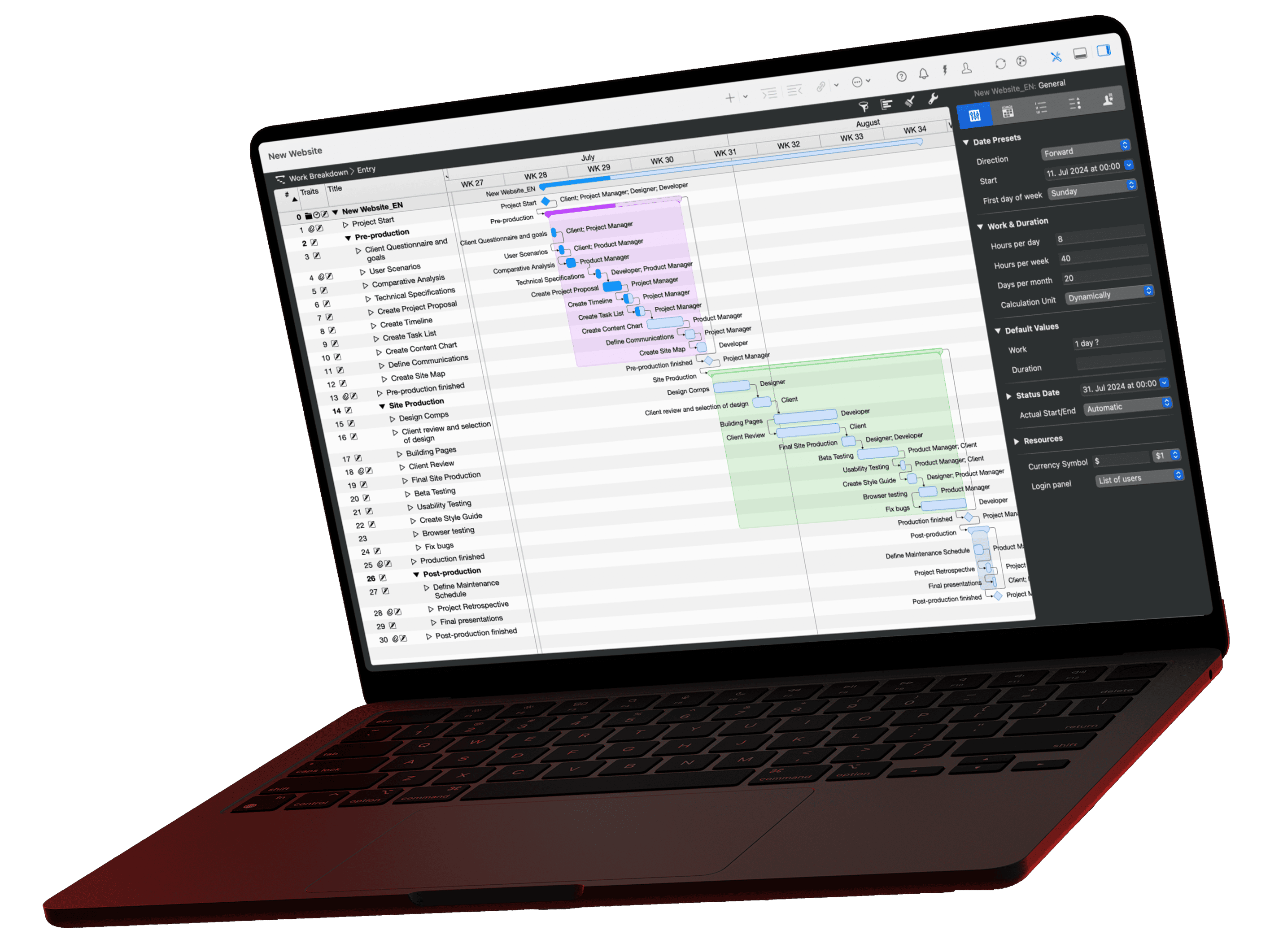
Ask an AI about your project today and you export the plan and upload the file; next week the plan has changed and it all starts over. That is why Merlin Project ships an MCP server, a small program on your Mac that lets an AI client read the open plan directly instead of working from a copy. Claude Desktop is the most comfortable way there, because one block in one configuration file is enough. This article walks through the three steps in order, from installing the server to the first question you put to your plan.
The video for this article
The video (in German) is embedded in the German version of this article. It walks through the setup on the sample project "Produktlaunch Phoenix", a small product launch with five phases, twenty-odd tasks, and eight resources. At the end, Claude asks the plan for reached milestones and the next dates, and the answer comes from the project as it is open in Merlin right now. The steps below are complete on their own.
What you need
- Merlin Project, current version
- Claude Desktop for Mac; a free Claude account is enough
- an open project that Claude may read
Nothing else. No terminal, no Node packages, and no half hour of documentation. MCP stands for Model Context Protocol, an open standard that every major AI provider now supports. It describes how an AI client calls the tools an application offers, in our case the read queries of the Merlin server.
Steps 1 and 2: prepare Merlin Project
- Install the server. In Merlin Project, open the Merlin Project menu and choose Install MCP Server. Merlin places a small program on your Mac, the bridge between AI client and plan. The installer shows the path; it is
/usr/local/bin/merlinproject-mcp. - Share the project. Open the project and click AI Tools in the toolbar. Check Allow AI tools to interact with document; the symbol is shown filled. Sharing applies to this one project only, all others stay invisible to the server. As soon as a client is connected, the symbol turns blue.
local · read-only · not reachable from outside. The server only reads the projects you share, changes nothing in your data, and nobody can reach it from outside. What a cloud client sees of the data it reads is explained in the privacy article.
These two steps are the same for every client. If you later connect Claude Code, Codex, or Antigravity, they are already done.
Step 3: tell Claude Desktop about the server
Merlin is ready, but Claude does not yet know the server exists. This is the only step where you briefly touch a file.
- In Claude Desktop, open Settings and go to Developer.
- Click Edit Config. Claude highlights the file
claude_desktop_config.jsonin the Finder. - Open the file in a text editor, TextEdit for example.
- Paste the following block and save.
Config block for merlin-project claude_desktop_config.json
{
  "mcpServers": {
    "merlin-project": {
      "command": "/usr/local/bin/merlinproject-mcp"
    }
  }
}
Only add to the file. If it already has content, delete none of it, or Claude loses other tools you have set up. If an mcpServers entry already exists, add only the inner merlin-project block.
- Quit Claude Desktop completely (Cmd+Q) and start it again. Claude reads the configuration file only at launch.
After the restart, merlin-project appears in the list of tools. The connection is up, and the AI Tools symbol in Merlin Project turns blue as soon as Claude reads the plan for the first time.
The first question for your plan
Ask Claude where your project stands. The prompt from the video lives in our prompt library and can be copied right here:
Prompt: Where does my project stand right now?
Summarize the current status of the active project. Proceed in three steps: first state the overall progress and the planned end date, then the most recently reached milestones, and finally the next upcoming dates. Highlight what has changed compared to the plan and limit yourself to the ten most important points.Open this prompt in the library ›
Claude reads tasks, milestones, and dates from the shared project and summarizes them. No export, no copy, and if you move a date tomorrow, Claude gives you tomorrow's answer. More questions, from resource load to stakeholder updates, are in the prompt library.
If Claude does not see the server
The most common mistake is also the simplest: Claude Desktop was not fully quit after saving. Closing the window is not enough. Quit the app via Cmd+Q and relaunch it. Three more checks:
- Check the path. The installer in Merlin Project shows the server's path. It must match the value in the config block exactly.
- Check the JSON. One missing comma or curly brace is enough for Claude to ignore the whole file. Copy the block from this page instead of typing it.
- Check sharing. Is the project shared via "AI Tools"? The server only reads projects with access enabled. An installed server without a shared project answers with an empty list.
The checklist
To follow along: the sample project
If you want to practice without a project of your own first, download Produktlaunch Phoenix, the sample project from the video. It is already underway, the first phases are complete, and Claude finds milestones and dates in it, exactly as in the video.
The other clients
Claude Desktop is the most comfortable start. If you work in an editor or the terminal, or have data that must not leave the Mac, the matching guide is here:
- Claude Desktop (this article): One block in one file, restart
- LM Studio: Download a model, one block in one file
- Claude Code: One command
- Codex: One command
- Antigravity: One block in one file, full restart
- ChatGPT: Copy bridge or Intelligent Assistant
- Which AI client suits you?
The full reference for all clients is in the MCP documentation.
If you have any questions about this blog article or would like to discuss it, we look forward to your contribution in our forum.