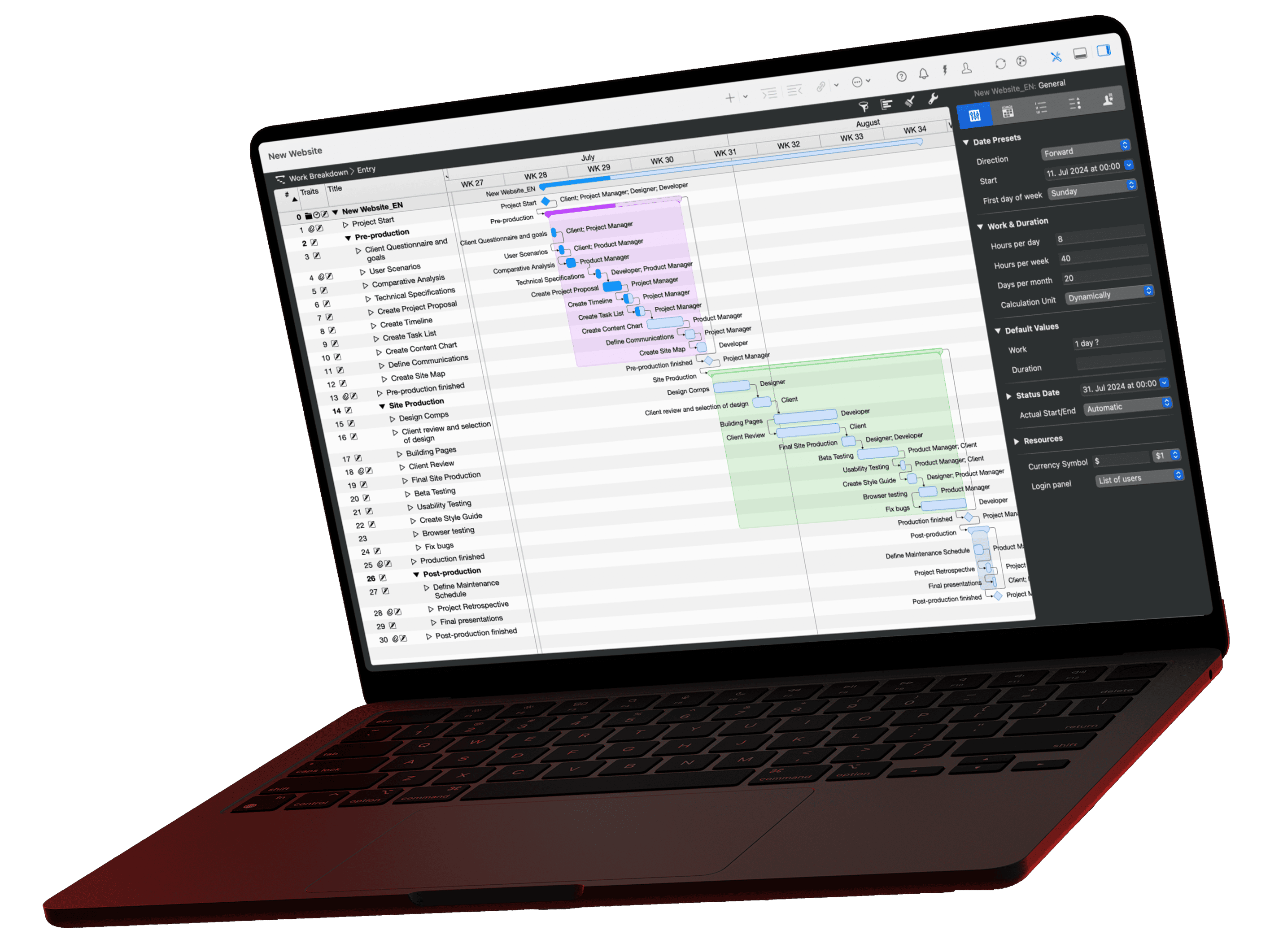
Codex is OpenAI's terminal agent and therefore the counterpart to Claude Code for anyone who already holds an OpenAI subscription. Like every MCP client, Codex knows nothing about your project plan until you introduce the Merlin server to it; after that it reads tasks, dates, and resources straight from the shared project. One line in the terminal is enough for that. This article explains how that command is built, how to verify the connection, and ends with a stakeholder update from real plan data.
The video for this article
The video (in German) is embedded in the German version of this article.
What you need
- Merlin Project, current version, MCP server installed, project shared
- Codex, installed and logged in; without a login the connection command hits nothing
The Merlin side is the same for every client:
- Install the server. In Merlin Project, open the Merlin Project menu and choose Install MCP Server. Merlin places a small program on your Mac, the bridge between AI client and plan. The installer shows the path; it is
/usr/local/bin/merlinproject-mcp. - Share the project. Open the project and click AI Tools in the toolbar. Check Allow AI tools to interact with document; the symbol is shown filled. Sharing applies to this one project only, all others stay invisible to the server. As soon as a client is connected, the symbol turns blue.
local · read-only · not reachable from outside. The server only reads the projects you share, changes nothing in your data, and nobody can reach it from outside. What a cloud client sees of the data it reads is explained in the privacy article.
Step 1: introduce the server to Codex
Open the terminal and enter this one line:
Connect Terminal
codex mcp add merlin-project -- /usr/local/bin/merlinproject-mcpThe line has two halves. Everything before the double dash is addressed to Codex: remember a server named merlin-project. Everything after it is the program Codex should start for that server. Codex confirms that the server is registered.
Step 2: verify inside the session
The server is registered. Whether Codex also sees it in the running session, you check with a command inside Codex itself. Start Codex with codex and type:
Verify, inside the running Codex session Codex
/mcpCodex lists the connected servers; merlin-project is among them.
The first question: the stakeholder update
Now the question it is all about. You want the status of your project in a few sentences, plus reached milestones and the next critical dates, the way you would send it to a client:
Prompt: How do I brief the steering committee?
Create a stakeholder update for the steering committee from the current project data: half a page at most, understandable for readers without detailed knowledge. Structure: overall status in one sentence, progress since the last update, current risks, decisions needed. Avoid jargon and name the affected milestone for each risk.Open this prompt in the library ›
Codex reads the plan via MCP and writes the update with the real dates. If a task moves tomorrow, Codex writes tomorrow's updated version. On the first tool call, Codex asks for your approval.
If the server does not appear
- Command unknown? Codex is not installed or the path is missing in the terminal. Check the installation, open a new terminal.
- Registered but not in
/mcp? Quit the Codex session and start it again; running sessions do not reload the configuration. - Empty answer? Share the project in Merlin via "AI Tools"; compare the path with the installer.
Checklist
For practice, use the sample project Produktlaunch Phoenix. More report formats are in the prompt library. The Claude counterpart in the terminal, including the call for automated reports, is in the Claude Code article. All guides:
- Claude Desktop: One block in one file, restart
- LM Studio: Download a model, one block in one file
- Claude Code: One command
- Codex (this article): One command
- Antigravity: One block in one file, full restart
- ChatGPT: Copy bridge or Intelligent Assistant
- Which AI client suits you?
If you have any questions about this blog article or would like to discuss it, we look forward to your contribution in our forum.